Finding your way around
What this covers
Where everything lives, so you can stop hunting. Tabledoo has one menu down the left and a few controls along the top.
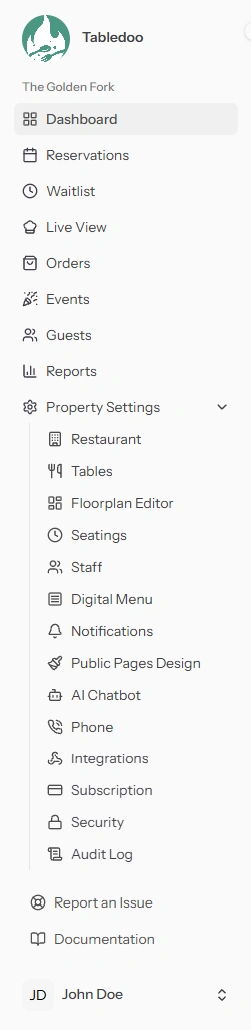
The left-hand menu.
The left-hand menu
| Item | What it is for |
|---|---|
| Dashboard | Today at a glance. |
| Live View | Every table as it stands right now. The screen to work from during service. |
| Orders | Food and drink orders guests have sent from their phones. |
| Reservations | The full booking list, and the Timeline grid of the whole day. |
| Waitlist | Guests waiting for a table. |
| Events | Ticketed nights such as a tasting menu or a quiz. |
| Guests | Guest profiles, visit history, notes, VIPs. |
| Reports | Bookings, revenue, table use, guests and booking-page reports. |
| Property Settings | A group that opens to reveal everything you configure. See below. |
Inside Property Settings
Click it to expand. Depending on your role and plan you will see: Restaurant, Security, Audit Log, Tables, Floorplan Editor, Seatings, Subscription, Staff, Digital Menu, Notifications, Public Pages Design, AI Chatbot, Phone and Integrations.
These are settings, not daily screens. Most restaurants set them once and come back a few times a year.
If a menu item is missing
It is one of two things, and neither is a fault:
- Your role. Hosts and servers do not see settings, reports or event management. See Roles and what each one can do.
- Your plan. Parts of Tabledoo are included on some plans only, and are hidden completely otherwise. See Plans, features and limits.
If you think you should have something, ask an Owner or Manager rather than assuming it is broken.
Along the top
- The trail of links on the left shows where you are, for example Reservations then the guest's name. Click any part of it to go back.
- The bell appears if your plan includes guest ordering or the call-waiter buttons. It is a running list of guests asking for a waiter, asking for the bill, or placing an order. A number on it means there is something you have not looked at yet. See The notification drawer.
Your own account
Click your name at the bottom of the menu for:
- Profile — your name, your email, and the language you want the app in.
- Password — change your password.
- Two-Factor — add a code from your phone at sign-in, for extra security.
- Appearance — light, dark, or follow your device.
- Log out.
These are yours alone. Choosing dark mode or Greek does not change anything for your colleagues.
At the very bottom
- Report an Issue — tell us something is wrong, from whatever screen you are on. It sends along which screen you were on and lets you attach a picture, which is usually what gets it fixed quickly. See Reporting a problem.
- Documentation — this help centre.
On a phone or small tablet
Tabledoo rearranges itself rather than shrinking:
- Long lists such as Reservations, Guests and the Waitlist become one card per entry, with the same actions.
- The Timeline offers a "switch to list view" button, because a wide time grid does not work on a narrow screen.
- The floor plan editor says it prefers a tablet or computer, but does not stop you.
If you use a phone or tablet often, it is worth installing Tabledoo as an app so it opens full screen.