Installing Tabledoo as an app
What this covers
How to put a Tabledoo icon on a phone, tablet or computer so it opens like an app instead of a browser tab. It takes about 20 seconds and is the single best thing you can do for the host-stand tablet.
What "installing" means here
Tabledoo is a website, but a modern one that can be added to your device as if it were an app. There is nothing to buy, nothing from an app store, and nothing to download and run. You are not getting a different product — it is the same Tabledoo, the same login and the same live data, just in its own window without the browser's address bar and tabs around it.
On an iPhone or iPad
- Open Tabledoo in Safari. This does not work in other browsers on Apple devices.
- Tap the Share button — the square with an arrow pointing up, at the bottom or top of the screen.
- Scroll down the list and tap Add to Home Screen.
- Tap Add. The Tabledoo icon is now on your home screen.
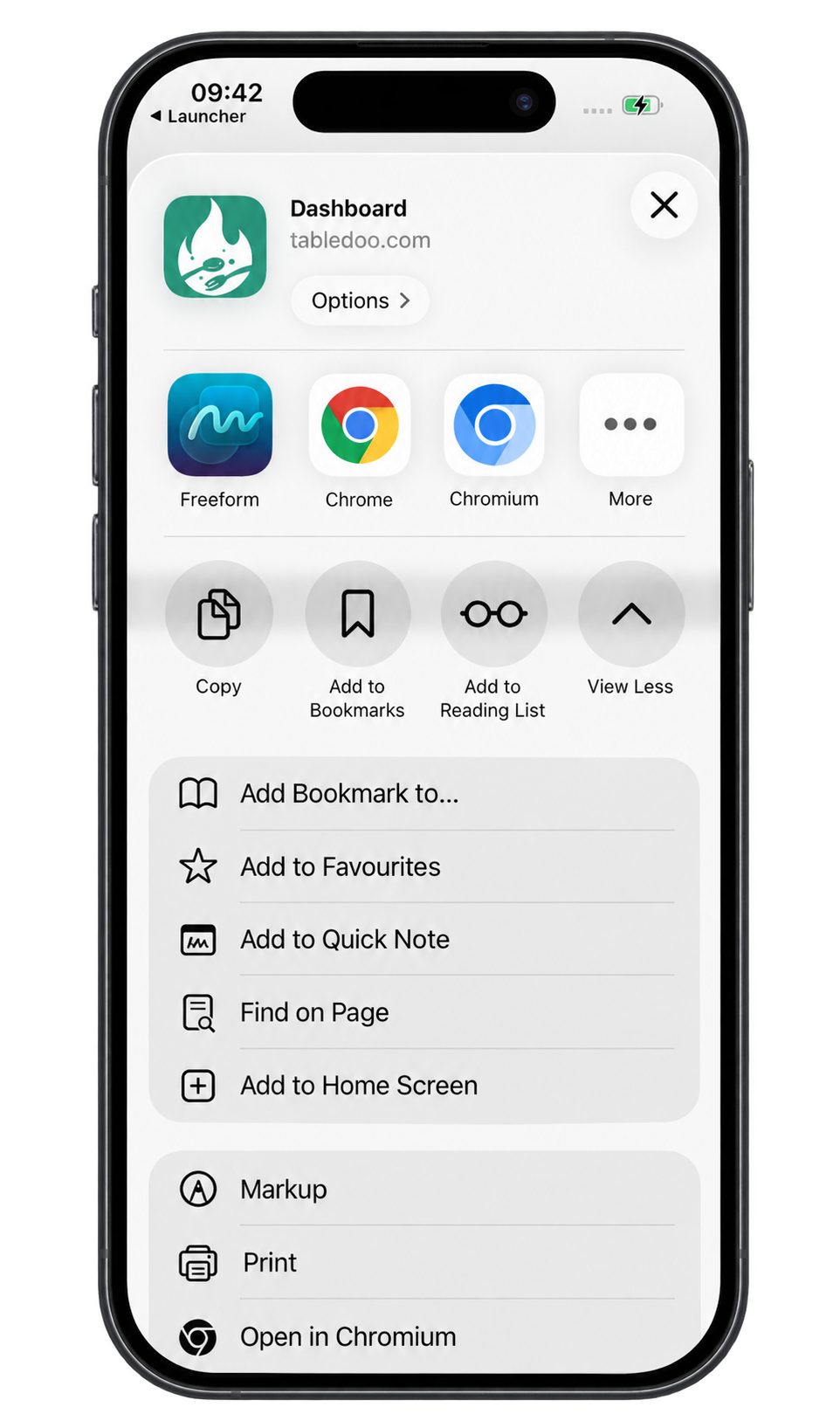
Adding Tabledoo on an iPhone or iPad.
On an Android phone or tablet
- Open Tabledoo in Chrome.
- Chrome usually offers to install it along the bottom of the screen. Tap Install.
- If it does not offer, tap the three dots in the top-right corner and choose Install app or Add to Home screen.
On a Windows or Mac computer
- Open Tabledoo in Chrome or Edge.
- Look for a small install icon at the right-hand end of the address bar — usually a screen with an arrow, or a plus sign.
- Click it and choose Install. Tabledoo now has its own window and sits in your taskbar or dock like any other program.
Why bother
- Full screen. No address bar and no tabs, so a tablet at the host stand behaves like a purpose-built terminal, and nobody wanders off to another website on it.
- It opens instantly, because the app itself is stored on the device. Only your live data is fetched.
- It copes with a weak connection. If the wifi drops for a moment you keep seeing the last information it had, rather than an error page. Images and your logo appear immediately because they are stored too.
- One tap to open, from the home screen or taskbar.
Good to know
- It updates itself. There is no version to keep an eye on — the next time you open it you have the current Tabledoo.
- It is the same account. Nothing to set up again, nothing to sync.
- Installing it on a shared device does not sign anyone in automatically. Each person still signs in with their own account.
- To remove it, delete the icon as you would any app. Your data is untouched — you are only removing the shortcut.
On a weak connection you may briefly see slightly out-of-date numbers, which Tabledoo replaces as soon as it reconnects. During a busy service, glance at Live View again after the connection comes back.