Dashboard: your daily snapshot
What this covers
Every number and list on the Dashboard, and what to do from it. The Dashboard is the screen you land on after signing in, and it is built to be read in about ten seconds during service.
You need permission to view reservations to see it, which every role has.
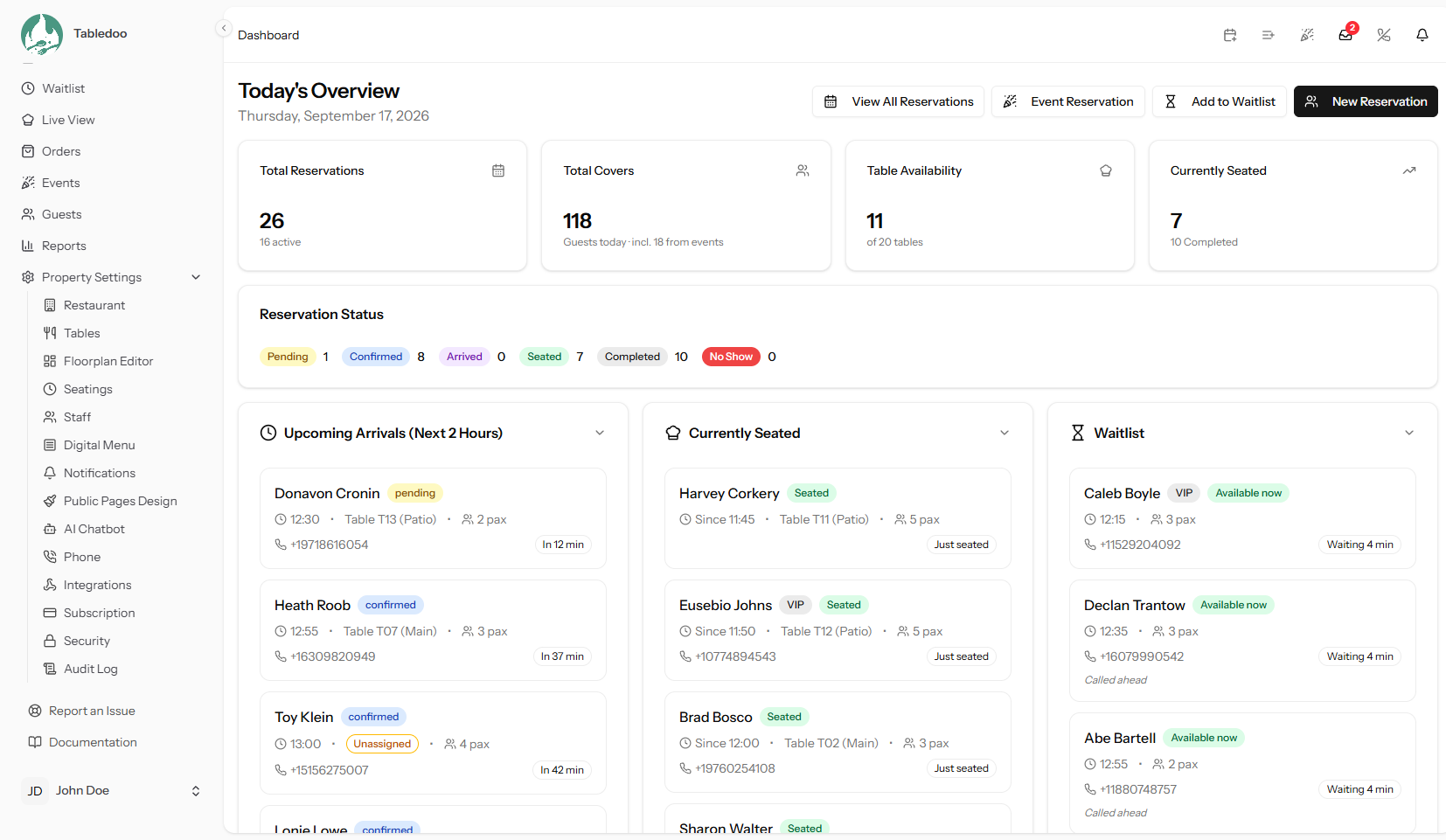
The Dashboard.
The four cards along the top
All four describe today only.
| Card | What it counts |
|---|---|
| Total Reservations | How many bookings you have today, of any kind. |
| Total Covers | How many guests you expect today. "Covers" means people, not bookings — a table of four is four covers. Cancellations and no-shows are left out, and if you run events, covers from those are counted in and shown separately. |
| Table Availability | How many tables are genuinely free right now, out of your total. See the explanation below. |
| Currently Seated | How many tables have guests sitting at them at this moment, plus how many bookings you have already completed today. |
What "available right now" really means
A table is counted as not available when either of these is true:
- Guests are sitting at it, or have arrived and are about to be seated.
- It has a booking due soon. "Soon" is a setting you control, so if you set it to one hour, a table with a booking in 40 minutes is treated as taken rather than free.
There is also a cut-off in the other direction, so a booking nobody ever seated or cancelled does not block its table forever. That cut-off is your no-show grace period. Both settings are explained in What each table status means, and the Dashboard deliberately uses exactly the same rules as Live View so the two screens can never disagree.
Reservation Status
A breakdown of today's bookings by where each one has got to: Pending, Confirmed, Arrived, Seated, Completed and No Show. What each means is covered in The reservation lifecycle.
Read it as a to-do list. A pile of Pending bookings at 6pm means nobody has confirmed them yet.
Upcoming Arrivals (Next 2 Hours)
Who is about to walk in. Each row shows the guest's name, the time, how many people, the table, and useful flags:
- A gold star means the guest is marked as a VIP.
- Special requests are shown here — a highchair, a birthday cake, a dietary need — so nobody has to open the booking to find them.
- A booking whose time has already passed is flagged as late, so you can see at a glance who has not turned up yet.
You can confirm, seat or cancel a booking from this list without opening it.
Currently seated
Every table in service at this moment, with how long each has been sitting. Useful for spotting the table that has been finished for half an hour and could be turned.
Getting a booking in quickly
Two buttons on the Dashboard save you navigating anywhere:
- New Reservation — the normal booking form. See Creating a reservation.
- Walk-In — a shorter form for guests already standing in front of you. See Walk-ins.
View All Reservations takes you to the full list.
Good to know
The Dashboard is a summary, not a working screen. For running a service use Live View (what is happening now) or the Timeline (how the day is shaped). The Dashboard is what you glance at between the two.