Creating a reservation
What this covers
Taking a booking, field by field. You need permission to create bookings, which Owners, Managers and Hosts have. Servers can move bookings along but not create them.
Where the booking form opens from
It is the same form everywhere, so learn it once:
- Dashboard — the New Reservation button.
- Reservations list — the New Reservation button.
- Timeline — click any empty square in the grid and the form opens already filled in with that date, time and table. This is the fastest way when you are looking at the day.
- Live View — click a free table to book it.
- When the phone rings, if your plan includes phone integration, the caller's details are already on screen and one click starts a booking for them.
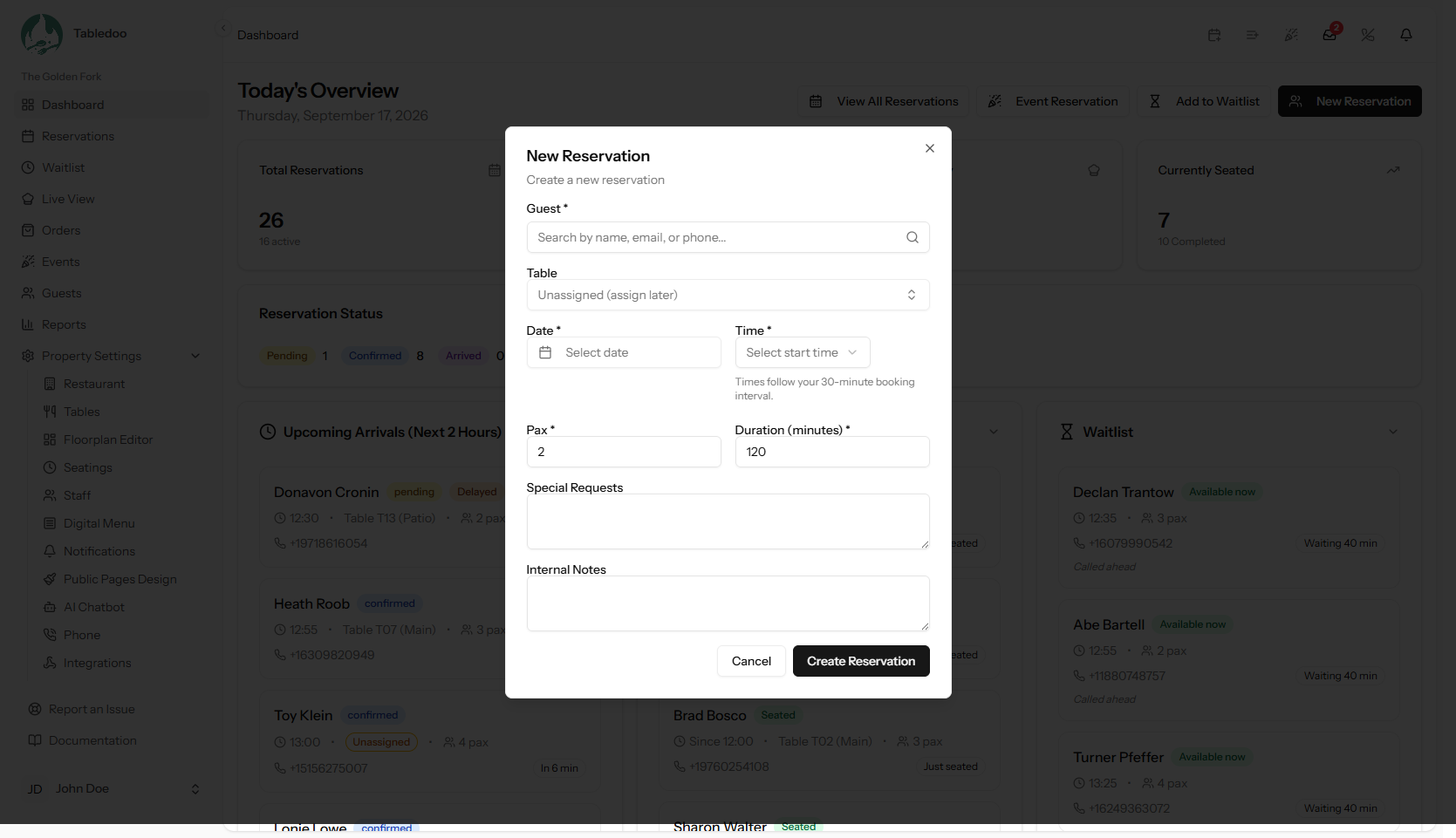
The booking form.
Step 1 — find or create the guest
Type at least three characters into the guest box. Tabledoo searches names, email addresses and phone numbers at the same time, so any of the three works — and phone numbers match even if they were saved in a different format, with or without the country code.
Each result shows how many times that guest has visited and a gold star if they are a VIP, so you can tell a regular from a stranger before you say hello.
If they are new, choose Create new guest and fill in first name, last name, email and phone without leaving the form. You can also mark them a VIP or add a note there and then.
If the guest is on your blacklist you will see This guest is blacklisted. That is a warning for you to act on, not an error. See Blacklisting a guest.
Step 2 — date and pax
Pick the date, then how many people. Pax simply means the number of guests in the party. It has to be within the smallest and largest party you accept, which you set in your booking rules.
Get pax right before picking a time: Tabledoo uses it to decide which tables are big enough, so changing it later changes what is available.
Step 3 — time
Only times that genuinely work are offered. If a time you expected is missing, it is for one of a handful of reasons, all listed in Why a time or table isn't offered.
If your restaurant uses seatings — named service windows such as a first and second sitting — you pick the seating rather than a free time, and the length of the booking is set by that window. There is a Book another time instead option if you need to go outside them; the booking is then marked Outside seatings so everyone can see it is an exception. See Rolling slots versus fixed seatings.
Step 4 — table
Tabledoo suggests the best fit — the smallest free table that seats the party, so you are not putting two people on a six-top. You can pick a different one, or choose Unassigned (assign later) and decide when you see how the night is shaping up.
An unassigned booking is a normal, complete booking: it still holds its share of your capacity so you cannot oversell. It just does not have a table yet. See Unassigned bookings and the assignment tray.
For a party too large for any single table, see Merging tables for a large party.
Step 5 — duration
This is how long you expect the table to be occupied, and it decides when the table frees up for the next booking. It starts at your restaurant's default — 90 or 120 minutes is typical — and you can change it for this booking. Give a party of ten longer than a party of two.
Step 6 — the two kinds of notes
There are two boxes and the difference matters:
| Box | Use it for |
|---|---|
| Special Requests | What the guest asked for: a quiet table, a highchair, a birthday cake, dietary needs. Treat this as something the guest could see. |
| Internal Notes | Notes for your team only: "regular, likes window seat", "paid deposit", "arrived late last time". |
Step 7 — source
Source records where the booking came from — Phone, Walk-In, Online, App or Other. Bookings made by guests on your own page, by the chatbot, or by another connected system are labelled automatically. Filling it in for phone bookings costs a second and is what lets you later answer "how many bookings do we actually take by phone?"
Save
Press Create Reservation. The booking appears immediately on the Timeline, the list and Live View, and the guest is sent a confirmation if those messages are switched on.
Two messages you might see
- "Reservation created — heads up, this slot is now over your pacing cap." The booking is saved. You have simply gone past the number of guests you said you wanted arriving in one time slot, and Tabledoo is letting you decide. See Pacing: max covers per slot.
- A message about your monthly reservation limit. Your plan includes a certain number of bookings a month. See Plans, features and limits.