The setup wizard
What this covers
The guided checklist that appears on your Dashboard when your restaurant is new, what it does, and how to get rid of it or bring it back.
What it is
Rather than dropping you into an empty app, Tabledoo opens a step-by-step guide. Each step either explains one screen or asks you to do one small thing, with a button that takes you straight to the right place. A bar across the top shows how far through you are.
It is a guide, not a gate. Nothing is locked until you finish it, and you can leave it at any point and come back.
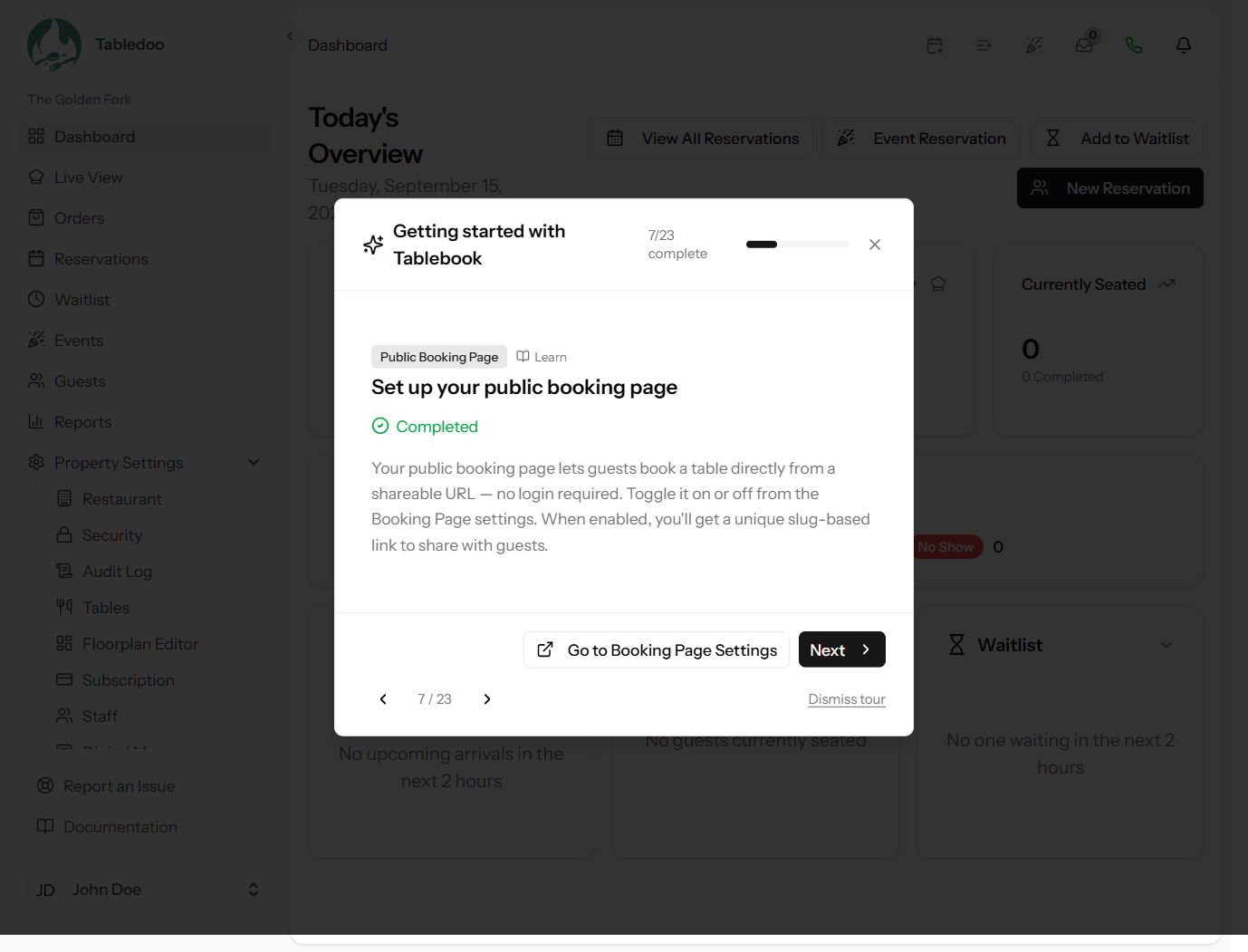
The setup wizard.
How it is organised
The steps are grouped into chapters, each covering one part of the app:
Welcome · Restaurant Setup · Tables · Team · Notifications · Public Booking Page · Floor Plan · API & Integrations · Dashboard · Live Operations · Reservations · Waitlist · Guests · Reports
Two kinds of step
- Steps that explain something. You read a short description of a screen and what it is for. Clicking through marks it as done — you have been told, so it counts.
- Steps that ask you to do something, such as adding your first table. The button takes you to the right screen.
How steps get ticked off
Three different ways, depending on the step:
- Automatically. Many steps watch for the thing itself. Once you have added a table, the "add your tables" step ticks itself — and it stays correct, because it is looking at your actual tables rather than remembering that you clicked a button.
- By clicking through. Reading steps are done once you have followed the button.
- By you. A few steps have a button to mark them done yourself, for things Tabledoo cannot check.
Why you might see fewer steps than a colleague
Steps are hidden when they do not apply to you, so you are never asked to do something you cannot:
- Steps for screens your role cannot open are not shown. A server is not asked to set up billing.
- Steps for parts of Tabledoo your plan does not include are not shown either.
Progress is kept per person. Your manager finishing the wizard does not finish it for you, and your own progress follows you to any device you sign in on.
Closing it, and getting it back
- Close just shuts the window for now. It comes back next time you move around the app, which is useful while you are still working through it.
- Not now keeps it shut for the rest of this visit.
- Dismiss is permanent: it stops opening on its own for good.
Dismissed it too early? You can reopen it from the Dashboard whenever you like.
Good to know
The wizard's explanations double as a short tour of the product, so it is worth clicking through even the steps you have already done. If you would rather work from a written list, use Your first day: a setup checklist instead — it covers the same ground in the same order.