Live View: the service board
What this covers
The screen your team works from during service. Every role can see it.
What it is for
Live View answers one question: what is happening right now? Every table you have, in one picture, colour-coded by whether it is free, about to be taken, or occupied.
It is the companion to the Timeline. The Timeline is how you plan the night before it starts; Live View is how you run it once guests are in the building.
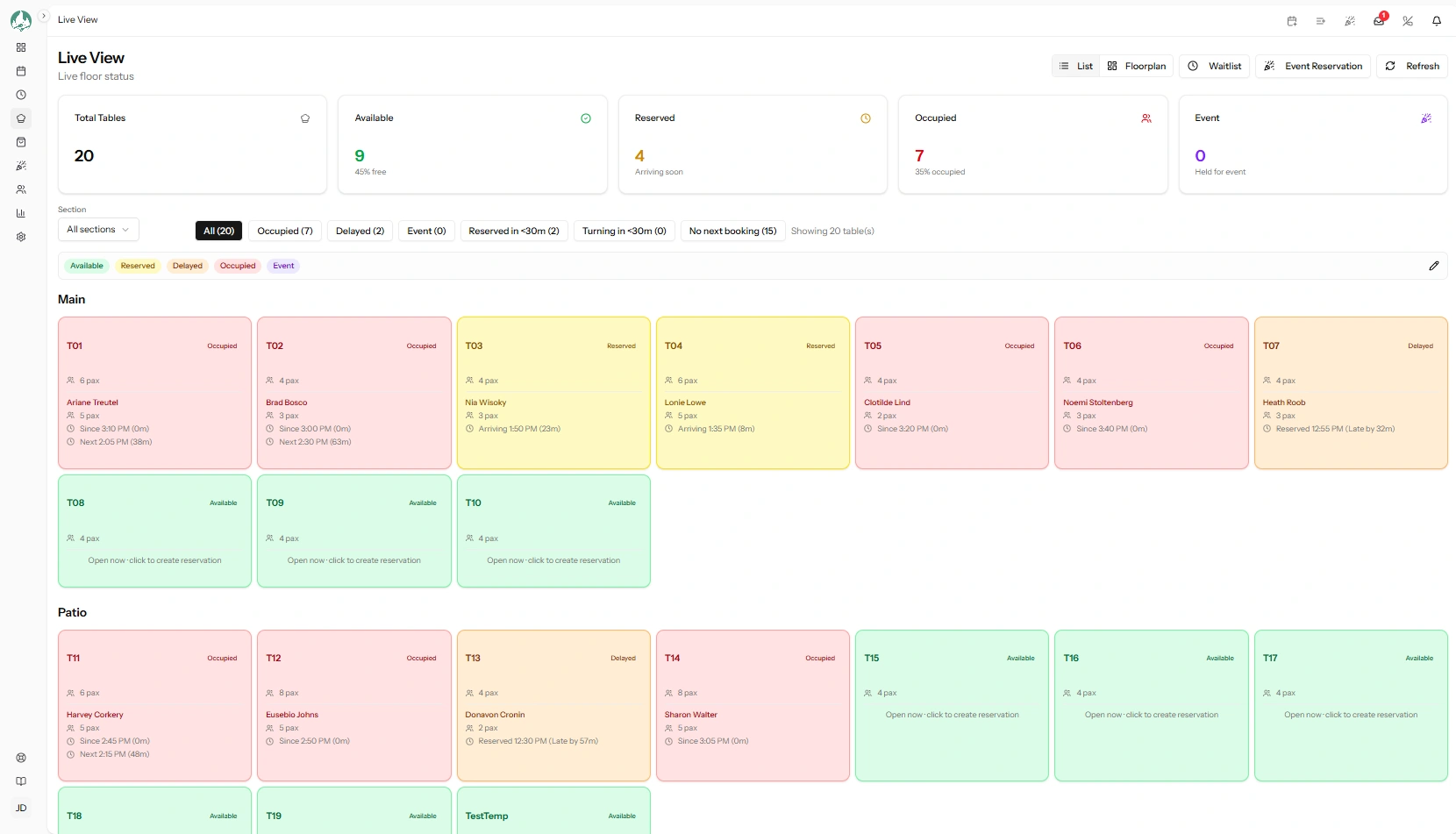
Live View.
It updates itself
You never need to refresh. When a colleague seats a table on another device, your screen changes within a second — Live View listens for changes as they happen rather than reloading on a timer. There is a Refresh button and a Last updated time in the corner if you ever want to force it.
This is what makes it safe for two or three people to work the floor at once.
How it is organised
- Counts across the top — how many tables are Available, Reserved, Occupied and Delayed right now, plus your total. A quick read of how full you are.
- Tables grouped by section, matching how your staff divide the room. There is a section filter so a server can see only their own area.
- Each table shows its status and the useful next fact: Next: Maria at 20:00 for a table due to be taken, Current: Maria (4 pax) and Since 19:15 for one in use.
What the four statuses actually mean is worth reading once: What each table status means.
Two ways to look at it
- List — tables as cards grouped by section. Works on any screen and on every plan.
- Floorplan — the same live statuses drawn on a picture of your actual room. Needs the floor plan feature and a plan you have drawn. See The floor-plan view.
Switch with the List and Floorplan buttons. You can set which one opens by default in Property Settings → Restaurant.
Who uses it for what
| Role | Typical use |
|---|---|
| Host | Which table to give the party at the door, and who is late. |
| Server | Their own section: who is seated, who has been sitting a long time. |
| Manager | How full the room is, and whether one section is drowning. |
You can work from it, not just watch it
Almost everything you need during service can be done from this screen without navigating away — seating guests, advancing bookings, taking a walk-in, seating someone from the waitlist. See Quick actions from Live View.