Adding staff accounts
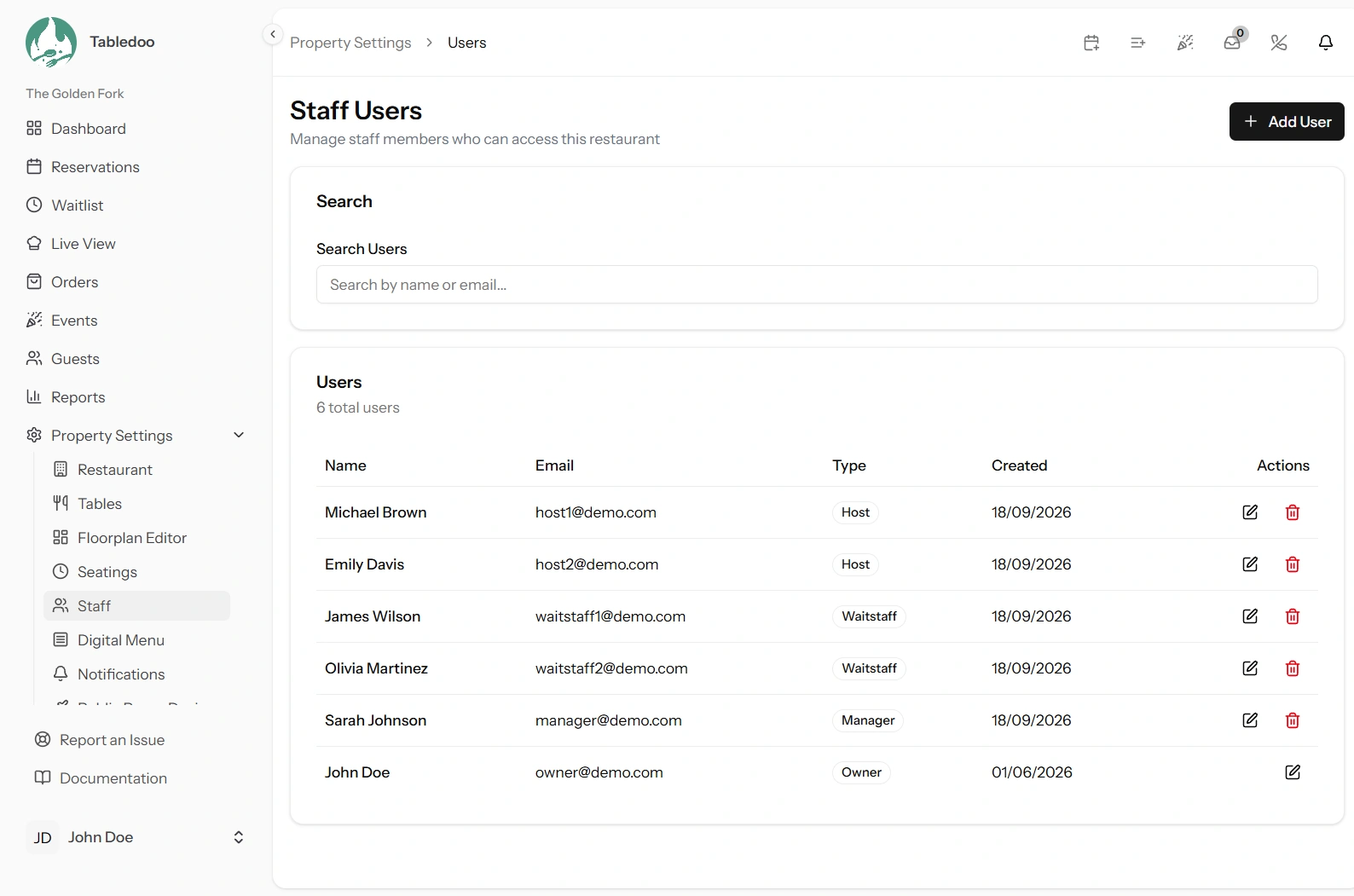
What this covers
Creating an account for a member of staff, and how they sign in afterwards. Requires the
manage-users permission — Owners and Managers have it. Find it at
Property Settings → Staff (/settings/users).
Everyone who uses Tabledoo needs their own account. Sharing one login means you cannot tell who did what, cannot give people the right level of access, and cannot remove one person without locking out everybody.
Creating an account
- Go to Property Settings → Staff and choose to add a user.
- Name — their real name, up to 255 characters. It appears in the audit log and on records they create, so "Sarah" is less useful than "Sarah Kelly" once you have two Sarahs.
- Email — must be a valid address and unique within your restaurant. It is their username.
- Role — Owner, Manager, Host or Waitstaff. Get this right first time; see below.
- Password — you set the initial one. It must meet the same rules as any other password (link Password requirements).
- Language — optional. Their interface language, which they can change themselves later.
- Save.
Two things about the password
You are setting a password for somebody else, so tell them to change it once they have signed in — they can do that themselves at any time, and until they do, you know their password.
Do not email a password in the same message as the sign-in link. Send the link by email and the password another way, or set it with them standing next to you.
How they sign in
Three things, and the first one catches everybody out:
- Your restaurant's property code — the short code that identifies your workspace. The same for everyone at your restaurant.
- Their email address.
- Their password.
Send all three. A new member of staff who has the email and password but not the property code cannot get in, and the sign-in page will not guess it for them (link Signing in).
Choosing the right role
Every person has exactly one role, and it decides what they see. A quick guide:
| Role | Give it to |
|---|---|
| Manager | Someone who runs the place in your absence. Everything except billing |
| Host | Door and phone staff. Takes and changes bookings, manages guest details, moves tables on the floor — but no settings, no reports, no events |
| Waitstaff | Servers. Sees bookings and guests and moves bookings along during service. Cannot create bookings or edit guests |
| Owner | Almost never a second one. It is the billing identity — see The Owner account |
Give the least access that lets someone do their job, and move them up if they need more. It is far easier to grant a permission than to explain an accidental deletion.
A common mistake is making everyone a Manager because it avoids questions. A Manager can change your booking rules, your operating hours and your staff list — that is a lot of trust to hand to a weekend server. The full matrix is in Roles and what each one can do.
The staff limit on your plan
Most plans cap how many accounts you can have. Reach it and creating another is refused with a message naming the limit:
User limit reached (5 users). Please upgrade your plan to add more users.
Two ways forward:
- Remove an account you no longer need. Staff who have left should be removed anyway (link Editing and removing staff).
- Upgrade your plan (link Changing your plan).
Your current count and limit are on Your plan and usage. Note that unlike tables, accounts cannot be parked — there is no deactivated state for staff, so an account either exists and counts, or is deleted.
A note on seasonal staff
If you take on extra people for a season and your limit is tight, the honest approach is to create their accounts when they start and delete them when they leave. Their bookings stay in your records either way.
Your restaurant is separate from every other
Worth saying plainly, because people ask. An account you create belongs to your restaurant only. Your staff cannot see any other restaurant's bookings, guests or settings, and no other restaurant's staff can see yours — the data is held separately, not merely hidden.
If the same person works at two restaurants that both use Tabledoo, they need an account at each, and they sign in with the relevant property code.
Good to know
Nothing is emailed automatically. Creating an account does not notify the person — you tell them yourself. So nothing reaches a mistyped address, and nothing arrives before you are ready.
Email addresses must be unique within your restaurant, so two people cannot share one. That is deliberate.
You can change a role later without disturbing anything they have created.
New accounts have no two-factor authentication. Each person turns it on for themselves, and it is worth asking Managers to (link Two-factor authentication).