Two-factor authentication
What this covers
Adding a second step to your sign-in, so a stolen password is not enough on its own. Anyone can turn it
on for their own account. This is a personal, profile-level setting, not a restaurant-wide one — click
your name at the bottom of the sidebar, then Account Settings → Two-Factor Auth
(/settings/two-factor). No permission needed.
What it does
With two-factor on, signing in takes your password and a six-digit code from an app on your phone. The code changes every thirty seconds, so knowing it once is no use later.
The point is simple: passwords leak. They get reused on a site that is breached, typed on a shared computer, or guessed. Two-factor means a leaked password on its own gets nobody in.
Turning it on
- Install an authenticator app if you do not have one. Google Authenticator, Microsoft Authenticator, Authy and 1Password all work — any app that supports standard authentication codes does.
- Click your name at the bottom of the sidebar, choose Account Settings, then Two-Factor Auth, and start setup.
- Confirm your password. Asked deliberately, so somebody at an unattended screen cannot attach their own phone to your account.
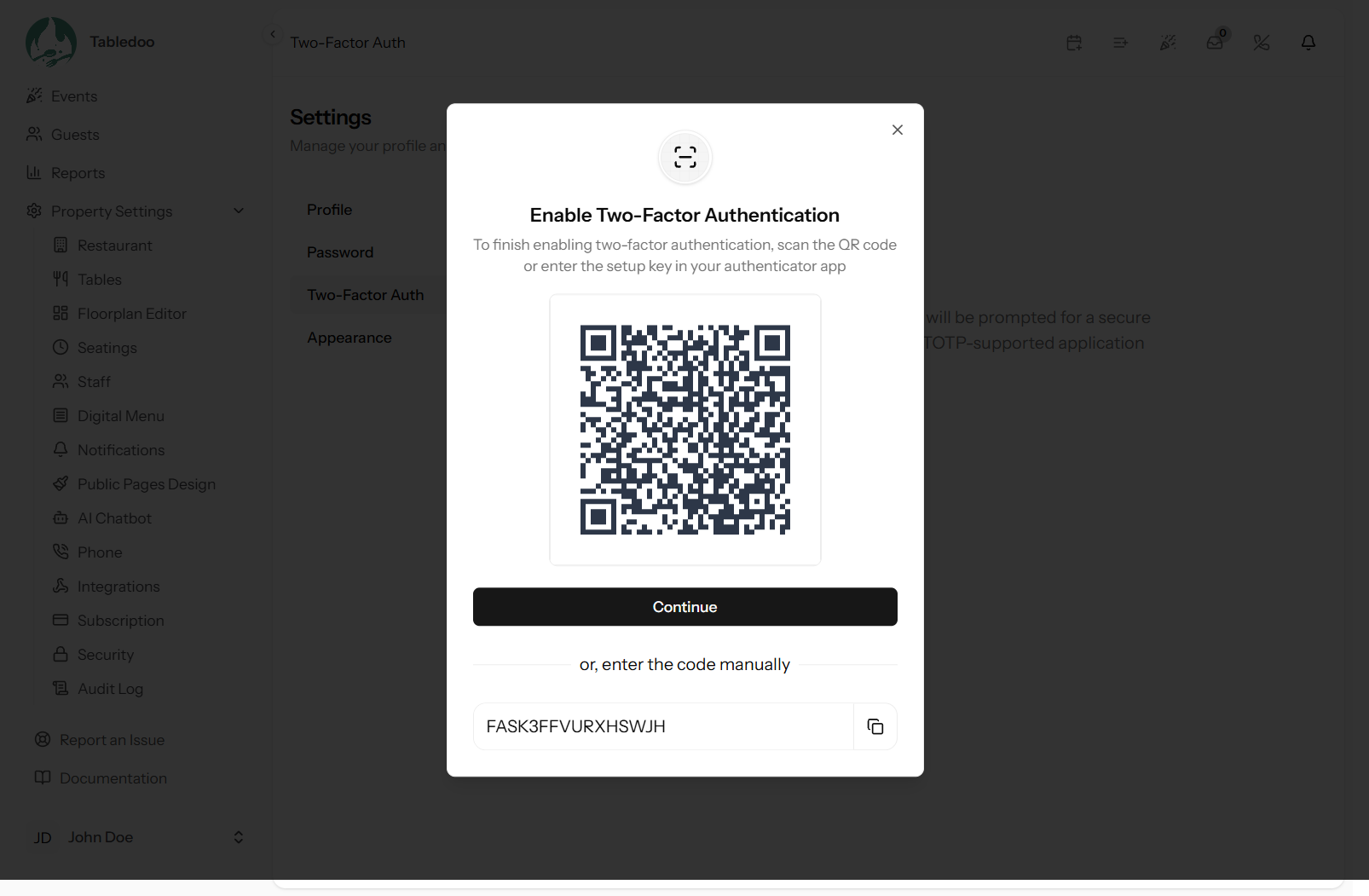
- Scan the QR code with your authenticator app. It adds an entry for your restaurant and starts showing codes. (If you cannot scan it, the app will accept the setup key typed in by hand.)
- Enter the current code to confirm. This proves the app is working before two-factor is switched on — so a mis-scan cannot lock you out.
- Save your recovery codes. See below. Do not skip this.
Your recovery codes
You are given eight single-use recovery codes. Each gets you in once in place of a code from your phone.
They exist for one situation, and it is a situation that happens: you no longer have the phone. Lost, stolen, dropped in a sink, replaced without moving the authenticator across. Without a recovery code, that means contacting support and proving who you are.
Where to keep them
Good: in a password manager; printed and kept where you keep other important papers; in a sealed envelope in the safe.
Bad: as a note on the phone that has the authenticator on it — that is the one device guaranteed to be missing when you need them. Also bad: emailed to yourself, or in a shared drive your whole team can read.
If you are the Owner, make sure somebody else can get at them in an emergency. An Owner whose codes are in a phone at the bottom of a harbour is a locked-out restaurant.
Using one
At the two-factor prompt, choose to use a recovery code and enter one. It works once and is then spent.
After using one, set up the app again on your new phone and regenerate your codes. Regenerating replaces all eight, so any old list becomes worthless — which is exactly what you want if you think the old list was seen.
Regenerating
There is a Regenerate Codes action on the same page. Do it if you use one, if you think someone has seen the list, or if you have simply lost track of where they are. The old eight stop working immediately, so write the new ones down before you leave the page.
Signing in afterwards
Property code, email, password — then the code from your app. A few seconds, every time.
People overestimate how annoying this is. In practice you open the app, read six digits and type them. Weighed against somebody reaching your entire guest book and your billing details, it is a trade worth making.
Who should turn it on
| Role | Recommendation |
|---|---|
| Owner | Yes. It reaches billing, your card details and everything else. If only one account has it, this one |
| Manager | Yes. Can change settings, staff and every booking |
| Host | Worth it, especially if they sign in from a personal phone |
| Waitstaff | Optional. Least access, and the most likely to be juggling a shared tablet mid-service |
You cannot require it — each person enables it for themselves — so if you want it on your Manager accounts, ask them and check it happened.
Turning it off
Possible from the same page, and it takes your password. Your recovery codes stop working, and you would need to set up from scratch to turn it back on.
The one legitimate reason is a device you can no longer use and no recovery codes left — but in that case you cannot sign in to turn it off, which is the point. Do not switch it off because it is mildly inconvenient.
Good to know
Codes work with no signal. Authenticator apps generate them from the clock, so they work on a phone in aeroplane mode or in a basement with no reception.
If your codes are always rejected, check your phone's clock. A phone whose time has drifted generates codes that are out of step. Setting the time to update automatically fixes it.
It is per person, not per restaurant. Yours protects your account; it does nothing for a colleague's.
Nobody else can turn yours off — not your Owner, not a Manager. Which is why the recovery codes matter.
It is separate from the IP allowlist. That restricts where people can sign in from; two-factor strengthens who is signing in. They work well together (link The IP allowlist).