Managing seatings
What this covers
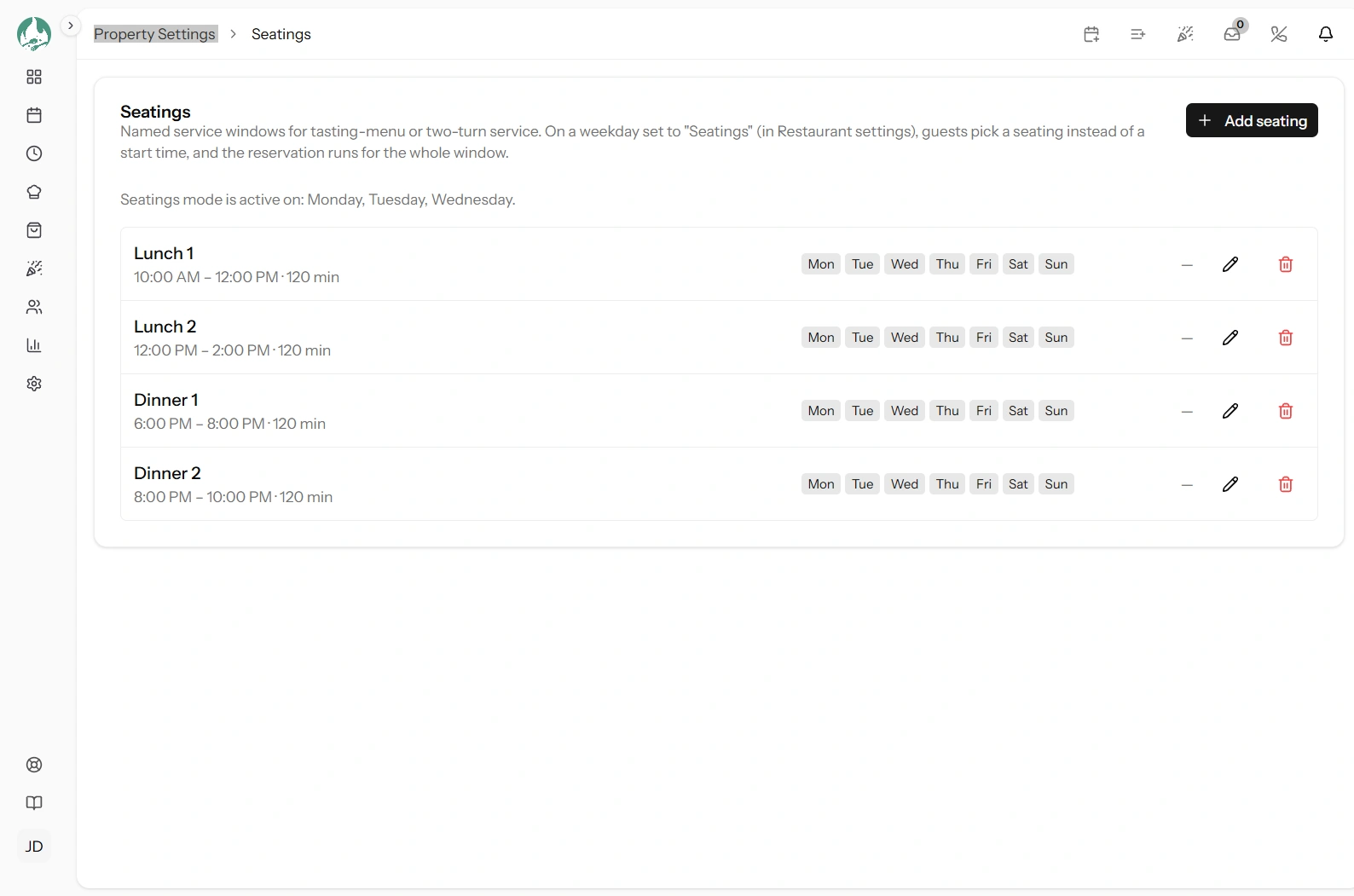
Creating and maintaining your service windows at Property Settings → Seatings
(/settings/seatings). Requires the manage-settings permission and the
Fixed Seatings feature.
Read Rolling slots vs fixed seatings first if you have not decided whether you want them.
Creating a seating
- Label — what guests will see. "First seating", "Early dinner", "Sunday lunch".
- Start and end time.
- Days of the week — at least one; a seating can cover several.
- Max covers — optional. A cap on how many covers this window may take.
- Save.
Writing a label guests will understand
The label appears on your public booking page, so write it for a guest rather than for your rota. "First seating" and "Second seating" are clear. "Sitting A" is not. If the window matters to them — a set menu, a shorter sitting — say so: "Early dinner (2 hours)".
The window sets the duration
Start and end are not just a filter — the window is the booking's length. A 19:00–21:00 seating gives every booking in it two hours, whatever your default duration says. So set the end time to when you actually need the table back.
Max covers
Leave it empty and the seating is limited only by your tables. Set it and no more than that many covers can be booked into the window, which is how you stop a 60-seat room selling 60 covers at once to a kitchen that can plate 40.
It takes precedence over your restaurant-wide pacing cap for that window, which is almost always what you want — the seating is the more specific statement (link Pacing).
Reordering, deactivating, deleting
Drag to reorder — this controls the order guests see, so put them in time order.
Deactivating takes a seating out of use without losing it: useful for a seasonal sitting you will want back. Deleting removes it permanently.
Both can be refused, and that is a feature
If deactivating or deleting would leave a weekday that is set to seatings with no seating covering it, the action is blocked:
Saturday is set to seatings but this change would leave no active seating covering it.
Without that guard you could make a Saturday completely unbookable in two clicks and not find out until a guest told you.
How to get past it
You have two honest routes, and which is right depends on what you meant:
- You want that day on rolling slots — switch its service mode back to rolling slots in Property Settings → Restaurant first, then remove the seating.
- You want a different sitting on that day — create the replacement first, then remove the old one. There is no gap this way.
What guests and staff see
- On the booking page — named windows in place of a list of times, in your chosen order.
- On the Timeline — bands across the day, so you can see which sitting a booking belongs to (link The Timeline).
- In the booking form — staff choose a seating, and the duration follows.
- On the reservation report — a row per seating with its bookings, covers, completions and no-shows, which is the honest scorecard for a sitting (link Reservation report).
Worked examples
Two dinner seatings
- First seating — 18:30–20:30, Tuesday to Saturday, max covers 45
- Second seating — 21:00–23:00, Tuesday to Saturday, max covers 45
The half hour between them is your turnaround. Two full rooms instead of one and a half, which is the whole reason to use seatings.
A weekend brunch
- Brunch — 10:00–12:00, Saturday and Sunday
- Late brunch — 12:30–14:30, Saturday and Sunday
Leave max covers empty if your kitchen copes and you just want the turns.
A Sunday-only set menu
- Sunday roast (3 hours) — 12:00–15:00, Sunday, max covers 50
One long sitting, one turn, a number your kitchen can cook. Set Sunday to seatings and leave every other day on rolling slots.
Good to know
Nothing stops two seatings overlapping on the same day. Usually a mistake, occasionally deliberate (a bar sitting alongside a dining sitting). Check your times when you create them.
Seatings must sit inside your operating hours to be bookable — a 23:00 seating on a day that closes at 22:00 offers nothing (link Operating hours).
They apply to every week. There is no one-off seating for a single date; use an event for that (link Creating an event).
Deleting a seating leaves its bookings alone. They keep the times and durations they were given.