Turning messages on and off
What this covers
Every control on Property Settings → Notifications
(/settings/notifications) and what each one changes. Requires the
manage-settings permission (Owner or Manager).
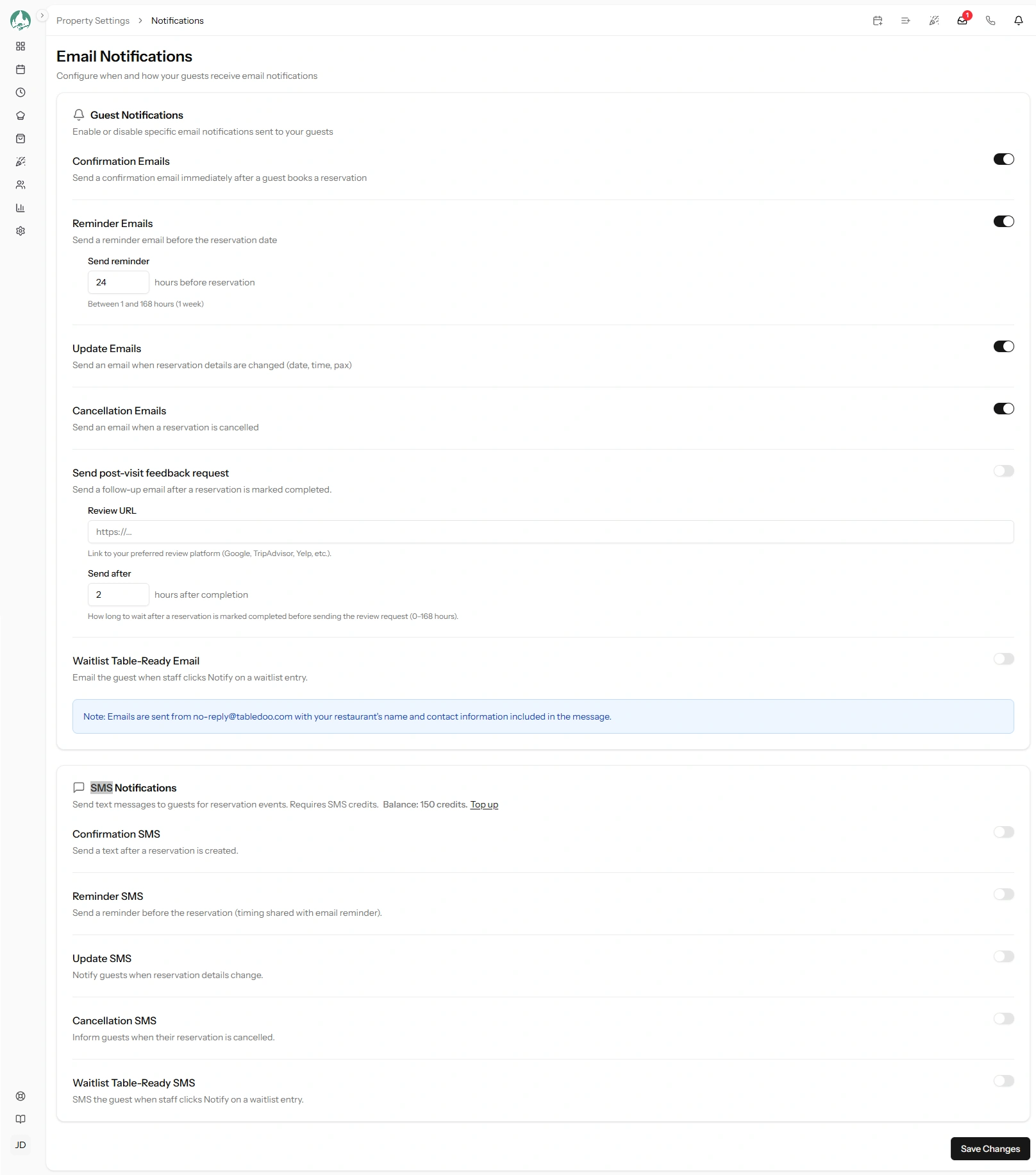
The layout
The page is two columns of switches over the same four message types, plus a few settings that need a number or a link.
| Switch | Default | Sends when |
|---|---|---|
| Confirmation emails | On | A booking becomes confirmed |
| Reminder emails | On | Your chosen number of hours before |
| Update emails | On | Date, time, pax or table changes |
| Cancellation emails | On | A booking is cancelled |
| Waitlist emails | On | Staff press Notify on a waitlist entry |
| Review request emails | Off | After a completed visit — needs the Guest Feedback Emails feature |
SMS
The same four types plus waitlist, all off by default. Each costs credits when it sends, so nothing here starts spending until you switch it on.
Numbers and links
- Reminder hours before — between 1 and 168 (one week). Default 24. Covered in Reservation reminders.
- Review request delay (hours) — between 0 and 168. Default 2. Covered in Post-visit review requests.
- Review link — the web address guests are sent to. Must be a full, valid address.
Press Save when you are done. Nothing on this page saves on its own.
Why the SMS column can look inert
The page shows your live credit balance and a top-up link beside the SMS switches. If you have no credits and no monthly allocation on your plan, the page says so — because switching SMS on in that state would produce switches that look active and send nothing.
You can still turn the switches on; they simply will not send until there are credits. See How SMS credits work.
What changes immediately, and what doesn't
Worth understanding before you flip something mid-service.
| Change | Takes effect |
|---|---|
| Turning a type off | Immediately. Any message not yet sent stops. Anything already sent is gone — there is no recall. |
| Turning a type on | From now on. It does not backfill. Bookings confirmed while confirmations were off never get one, even retroactively. |
| Changing reminder hours | From the next hourly sweep. A booking whose old reminder already went out will not get a second one. |
| Changing the review delay or link | Applies to visits completed from now on. Review requests already scheduled keep the delay and link they were created with. |
That last row is the one that surprises people. A review request is scheduled the moment a visit is marked completed, carrying the link as it was then. Fix a broken link and the requests already waiting in the queue still carry the old one.
Deciding what to turn on
A sensible starting point for most restaurants:
- Email: everything on. It costs nothing, and guests expect a booking confirmation.
- SMS: reminders first. If you only ever buy credits for one thing, make it the reminder — it is the message that reduces no-shows, and it is read.
- SMS confirmations next, if your bookings come in far ahead and you want the details in the guest's hand immediately.
- SMS updates and cancellations are worth it if you sometimes have to move people at short notice, where an email may not be seen in time.
- Waitlist SMS: on, if you run a waitlist at all. Someone waiting for a table is not reading email (link Waitlist messages).
- Review requests: on once you have your link, and set a delay that does not land while the guest is still finishing their coffee.
Good to know
Turning things off does not stop the app working. Bookings, changes and cancellations all carry on exactly as before; the guest simply is not told. Some restaurants deliberately run with cancellation messages off because they would rather phone.
Individual guests can be excluded. A guest with an SMS opt-out on their profile never receives a text, whatever these switches say (link Guests who opt out).
Event messages have no switches of their own. They follow the confirmation and cancellation settings above — see What Tabledoo sends, and when.