Managing allowlist entries
What this covers
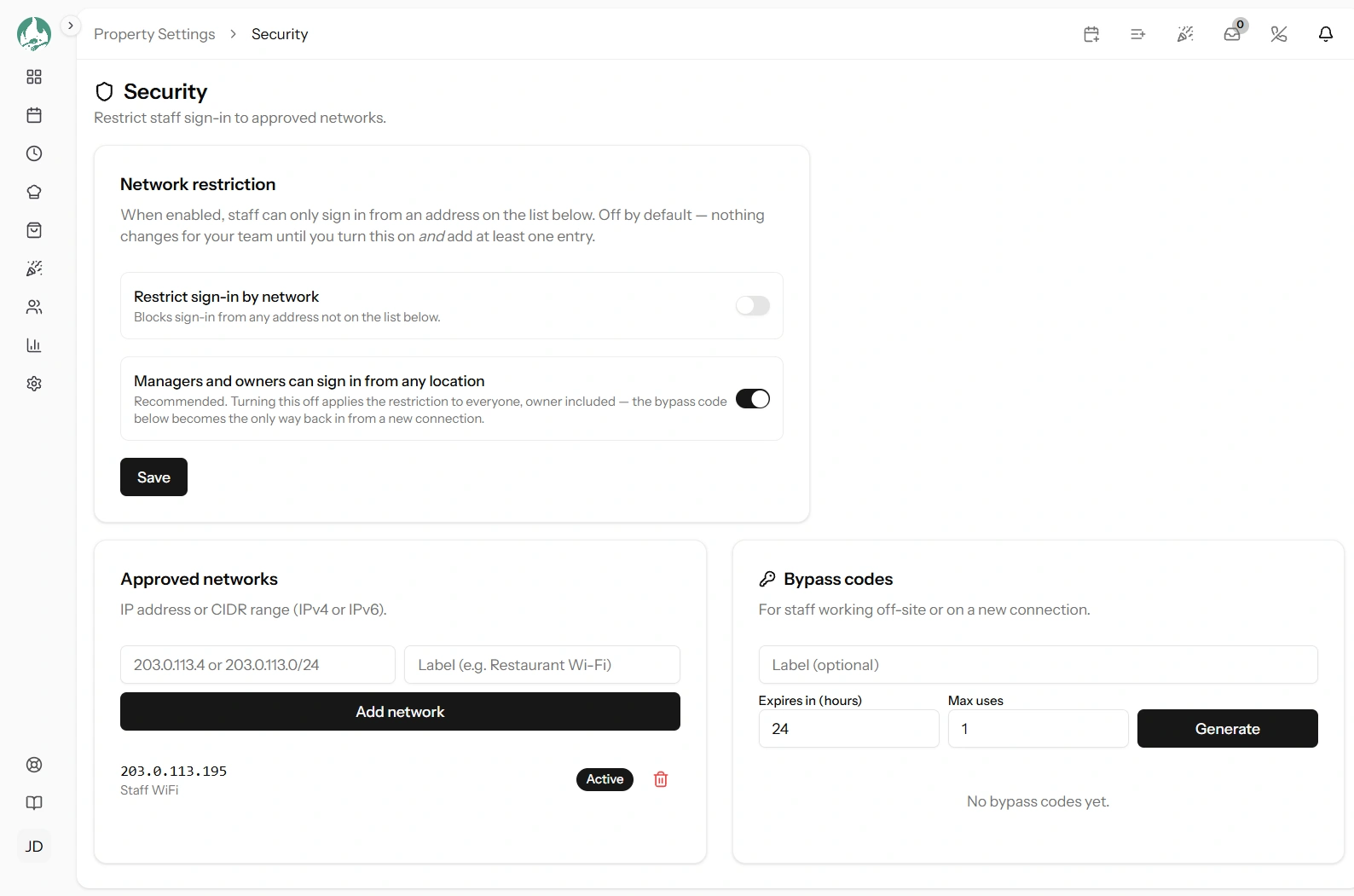
Adding, editing and removing the addresses your allowlist accepts. Requires the
manage-settings permission. At Property Settings → Security
(/settings/security).
Read Restricting sign-in to your venue's network first — it covers the safety rules that make this safe to experiment with.
What an entry is
Each entry is one address, or one range of addresses, that staff may sign in from.
What "your address" means
Every internet connection has a public address — a number like 203.0.113.45 that identifies
your connection to the rest of the internet. Everybody in your restaurant using your Wi-Fi shares the same
one, which is what makes this work: one entry covers every device on the premises.
Finding yours
From a device on the restaurant's network, search the web for "what is my IP address". The number shown is your public address. Do it on the restaurant's Wi-Fi, not on mobile data, and not from home — the address you want is your venue's.
Do it twice on different days before relying on it. If the number has changed, your connection is dynamic and you should read the warning in the overview article.
A range, in plain English
You may be told your connection uses a range rather than a fixed address, written like
203.0.113.0/24. That trailing /24 means "these addresses that start the same way"
— in this case everything from 203.0.113.0 to 203.0.113.255.
You do not need to understand the arithmetic. If your provider gives you a range, enter it exactly as given. Do not invent one to be safe — a range that is too wide lets in addresses that are nothing to do with you, which defeats the point.
Both modern address formats are supported, so an entry your provider gives you as a long address with colons works just as well as a short numeric one.
Adding an entry
- Address or range — required. Exactly as your provider gave it to you.
- Label — required, up to 255 characters. What this is: Restaurant Wi-Fi, Office, Owner home.
- Expiry — optional, and must be in the future. After it passes the entry stops counting. Ideal for a temporary location.
- Save.
The label is not decoration
It is required because an allowlist of bare numbers becomes unmaintainable within a year. A colleague
looking at 198.51.100.7 with no label cannot tell whether removing it will lock out the
restaurant or tidy up after a supplier who left in 2024 — so they leave it, forever.
Write what it is and, if it is temporary, why: "Pop-up at the food festival, remove after Sunday".
Check what you typed
A mistyped address is accepted without complaint. The field does not check the format, so
203.0.113 or the office will save quite happily — and then match nothing, because
it is not a real address.
That matters: an entry that looks present but matches nothing means your allowlist is non-empty (so it does not fail open) while allowing nobody. Your Hosts and Waitstaff are blocked while the list looks correctly configured.
So after adding an entry, verify from a staff device rather than trusting the list. That one habit prevents the only genuinely bad outcome here.
Activating, deactivating and removing
- Deactivate takes an entry out of use without losing it, along with its label and history. Right for a location you may return to.
- Remove deletes it permanently.
Deactivated and expired entries do not count. If all your entries are inactive or expired, the allowlist is treated as empty and lets everybody in — which is the fail-open rule doing its job rather than a fault.
Removing an entry safely
Before removing one, ask who is currently using it. Removing the venue's own entry while your staff are signed in on the floor blocks them on their next page load.
The safer sequence is to deactivate it, see whether anybody complains over a shift, and remove it afterwards.
The recommended order
- Add your venue's address first, with a clear label, while the allowlist is still off.
- Issue a bypass code and store it off-site (link Bypass codes).
- Enable the allowlist.
- Verify from a staff device — sign in as a Host, on the venue Wi-Fi. Not as the Owner, who is exempt by default and will get in either way, proving nothing.
- Then add any other locations you need.
Step 4 is the one people skip, and it is the only one that actually tests anything.
Good to know
Every change is recorded in the audit log — additions, activations, deactivations and removals, with who did it and when (link The audit log). That matters in a restaurant where several Managers have access.
Entries are shared across your whole restaurant, not per member of staff. There is no way to allow one address for one person only.
Expiry is a date and time, so a temporary entry can be set to lapse at the end of a specific day and needs no follow-up.
A guest's address is never involved. This restricts staff sign-in only; your public pages are unaffected.